



1. Git configuration
Git config
Get and set configuration variables that control all facets of how Git looks and operates.
Set the name:
$ git config - global user.name "User name"
Set the email:
$ git config - global user.email "youremail@domain.com"
Set the default editor:
$ git config - global core.editor Vim
Check the setting:
$ git config -list
Git alias
Set up an alias for each command:
$ git config - global alias.co checkout
$ git config - global alias.br branch
$ git config - global alias.ci commit
$ git config - global alias.st status
2. Starting a project
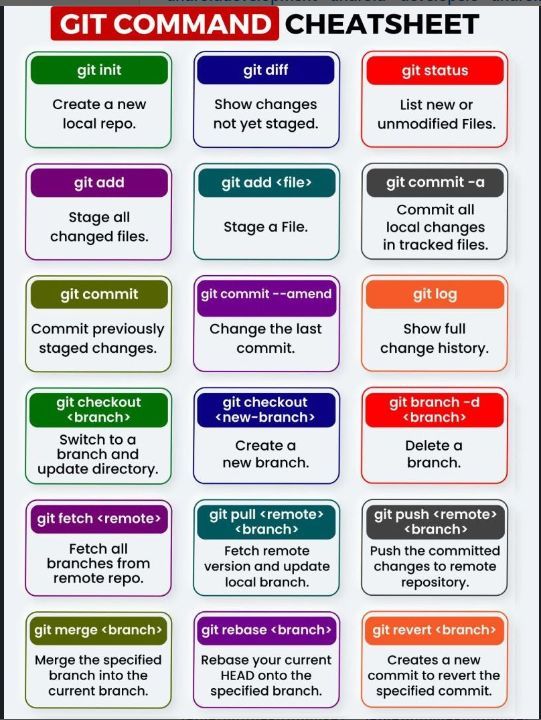
Git init
Create a local repository:
$ git init <Repo Name>
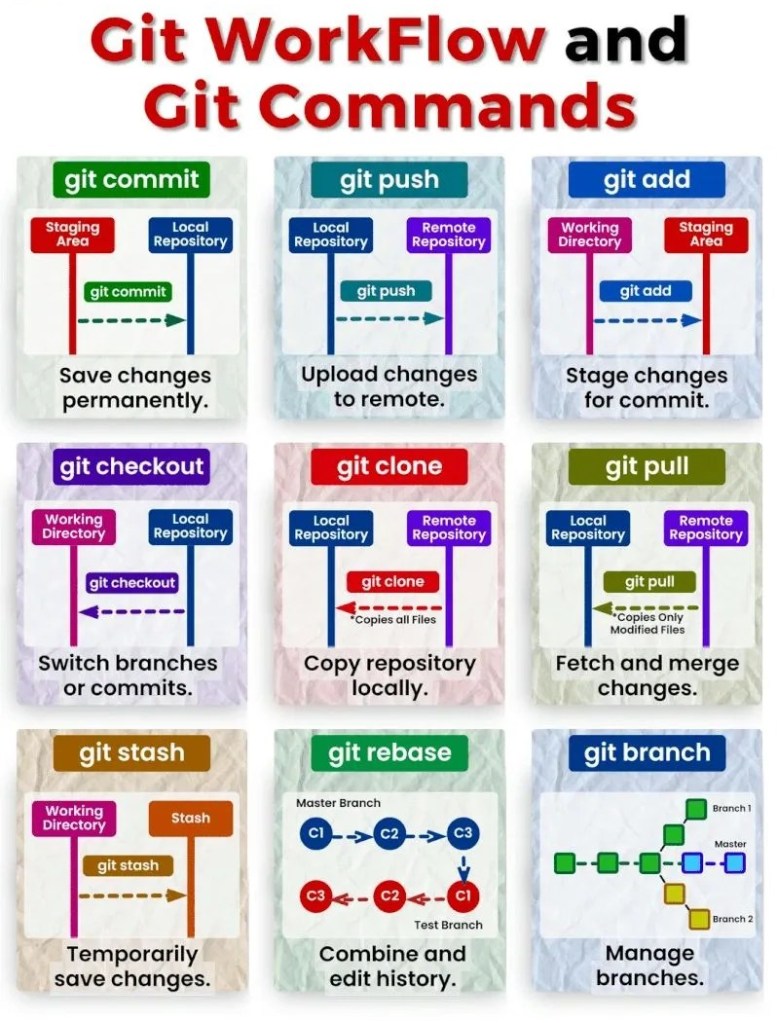
Git clone
Make a local copy of the server repository:
$ git clone <remote Url>
3. Local changes
Git add
Add a file to staging (Index) area:
$ git add <Filename>
Add all files of a repo to staging (Index) area:
$ git add .
Git commit
Record or snapshots the file permanently in the version history with a message:
$ git commit -m "Commit Message"
4. Track changes
Git diff
Track the changes that have not been staged:
$ git diff
Track the changes that have staged but not committed:
$ git diff - staged
Track the changes after committing a file:
$ git diff HEAD
Track the changes between two commits:
$ git diff <commit1-sha> <commit2-sha>
Git Diff Branches:
$ git diff <branch 1> < branch 2>
Git status
Display the state of the working directory and the staging area:
$ git status
Git show
Shows objects:
$ git show <options> <objects>
5. Commit History
Git log
Display the most recent commits and the status of the head:
$ git log
Display the output as one commit per line:
$ git log –oneline
Displays the files that have been modified:
$ git log –stat
Display the modified files with location:
$ git log -p
Git blame
Display the modification on each line of a file:
$ git blame <file name>
6. Ignoring files
.gitignore
Specify intentionally untracked files that Git should ignore. Create .gitignore:
$ touch .gitignore
List the ignored files:
$ git ls-files -i - exclude-standard
7. Branching
Git branch
Create branch:
$ git branch <branch name>
List Branch:
$ git branch - list
Delete Branch:
$ git branch -d<branch name>
Delete a remote Branch:
$ git push origin -delete <branch name>
Rename Branch:
$ git branch -m <old branch name><new branch name>
Git checkout
Switch between branches in a repository.
Switch to a particular branch:
$ git checkout <branch name>
Create a new branch and switch to it:
$ git checkout -b <branchname>
Checkout a Remote branch:
$ git checkout <remotebranch>
Git stash
Switch branches without committing the current branch.
Stash current work:
$ git stash
Saving stashes with a message:
$ git stash save "<Stashing Message>"
Check the stored stashes:
$ git stash list
Re-apply the changes that you just stashed
$ git stash apply
Track the stashes and their changes:
$ git stash show
Re-apply the previous commits:
$ git stash pop
Delete a most recent stash from the queue:
$ git stash drop
Delete all the available stashes at once:
$ git stash clear
Stash work on a separate branch:
$ git stash branch <branch name>
Git cherry pic
Apply the changes introduced by some existing commit:
$ git cherry-pick <commit id>
8. Merging
Git merge
Merge the branches:
$ git merge <branch name>
Merge the specified commit to currently active branch:
$ git merge <commit>
Git rebase
Apply a sequence of commits from distinct branches into a final commit.
$ git rebase <branch name>
Continue the rebasing process:
$ git rebase –continue
Abort the rebasing process:
$ git rebase - skip
Git interactive rebase
Allow various operations like edit, rewrite, reorder, and more on existing commits.
$ git rebase -i
9. Remote
Git remote
Check the configuration of the remote server:
$ git remote -v
Add a remote for the repository:
$ git remote add <short name><remote URL>
Fetch the data from remote server
$ git fetch <Remote>
Remove a remote connection from the repository:
$ git remote rm <destination>
Rename remote server:
$ git remote rename <old name><new name>
Show additional information about a particular remote:
$ git remote show <remote>
Change remote:
$ git remote set-url <remote name><newURL>
Git origin master
Push data to remote server:
$ git push origin master
Pull data from remote server:
$ git pull origin master
10. Pushing Updates
Git push
Transfer the commits from your local repository to a remote server.
Push data to remote server:
$ git push origin master
Force push data:
$ git push <remote><branch> -f
Delete a remote branch by push command:
$ git push origin -delete edited
11. Pulling updates
Git pull
Pull the data from the server:
$ git pull origin master
Pull a remote branch:
$ git pull <remote branch URL>
Git fetch
Downloads branches and tags from one or more repositories.
Fetch the remote repository:
$ git fetch< repository Url>
Fetch a specific branch:
$ git fetch <branch URL><branch name>
Fetch all the branches simultaneously:
$ git fetch –all
Synchronize the local repository:
$ git fetch origin
12. Undo changes
Git revert
Undo the changes:
$ git revert
Revert a particular commit:
$ git revert <commit-ish>
Git reset
Reset the changes:
$ git reset –hard
$ git reset –soft
$ git reset - mixed
13. Removing files
Git rm
Remove the files from the working tree and from the index:
$ git rm <file Name>
Remove files from the Git But keep the files in your local repository:
$ git rm - cached














 Kannan - Portfolio and Blogs